
When I started birding, I carried a pencil and small notebook into the field to record sightings and make notes. It was a great way to learn, but a little cumbersome. A few years later, I met a birder who dictated sightings into a cassette-based voice recorder. How cool was that! Well, not the cassette part. So I bought a digital voice recorder with a remote mic. I could keep the device in my pocket, clip the mic to my binocular strap, and be able to record notes without ever lowering my binoculars. Plus, it could record bird sounds in a pinch. I love that thing and never imagined that I could bird without it.
And then comes the iPhone with all its wonderful apps. Smart phones and listing-keeping applications seem to be made for each other. It’s very convenient to keep your list on a device that you always have handy. Although I still use my trusty voice recorder from time to time, I’ve pretty much fully switch over. If you have an iPhone or iPod Touch, I highly recommend using one of these apps. But which one? I’ll briefly describe and compare the iPhone listing apps that I’ve used. (Note, some of these are also available on Android phones, but I haven’t used those versions.)
First, all of these apps will obviously let you record which birds, and how many, you see. They will also email lists, export them in a format acceptable to eBird, and keep a rudimentary life list.

BirdsEye BirdLog North America
$9.99
Website
Worldwide version ($19.99)
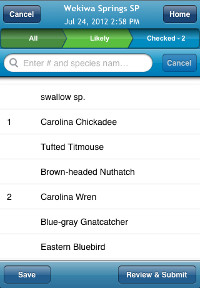
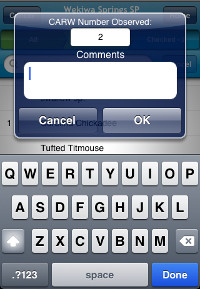
The Good
- Submits directly to eBird
- Very fast to enter data in the field, unless you want to note male/female, etc (see below)
- Records your location with GPS, or you can use eBird hotspots
The Bad
- Not as fully featured as some other apps. For example, it uses GPS to note your location, but you cannot tag the location of individual birds.
- Besides the count, you can only enter text notes for sightings. There isn’t any way to easily keep track of male/female, age, heard-only, etc. You can enter that as a note, but it takes longer and is more cumbersome than it should be
- Expensive, especially for the worldwide version
- Requires the use of eBird (but aren’t you doing that anyway?)
Birdlog is very easy to use (especially after figuring out some shortcuts). I thought the disappointing support for noting details about a sighting would be a deal-breaker for me. But although I hope it will eventually be added, it hasn’t been a very big deal. The speed with which you can enter sightings in the field and the convenience of direct uploads to eBird more than make up for the app’s shortcomings.
Birdlog does not include any life list features within the app. However, once you get your sightings into eBird, you can manage your lists there. This app also does not support any export options other than eBird. But again, you can do that from eBird. This is why I mentioned that Birdlog requires the use of eBird in the Bad list above. As I see it, this isn’t really a knock on Birdlog – the app was designed to be a mobile interface to submit sightings to eBird. So this is more of something to be aware of rather than a flaw in the app.
Birdwatcher’s Diary
$12.99
Website
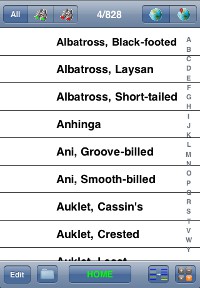
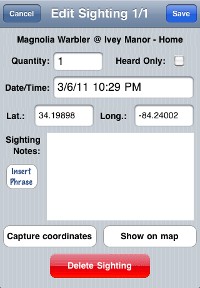
The Good
- The most powerful and fully featured list-keeping app
- Can submit directly to eBird
- Usable worldwide
- Flexible and extensible – can import lists for anywhere and of anything, not just birds (i.e. mammals)
- Keeps track of time and can record GPS location
- Export lists as Google Earth KML
- Uses iTunes for backup, or can upload to ftp sites
- Life list functionality relatively robust
The Bad
- Price
- Complicated
- Runs through battery quickly if GPS is being used
- Cumbersome to separately count by gender, age, and plumage
Birdwatcher’s Diary is the most powerful listing app I’ve used. By downloading and installing lists, it can be used anywhere and for just about anything. The filtering capabilities seem especially well-suited to bird surveys and big days. The life list feature has options, unlike most other apps, so you can have it tell you what birds you’ve seen in a given location, time period, etc. You can count different “types” of the same bird individually (male/female, subspecies, etc), but it takes much more effort than in birdcountr.
However, this is not the most intuitive app. I had to actually read the manual to figure out how to use it. But the good news is that the manual is a fairly good and easy-to-follow tutorial that walks you through the myriad features.

Lifebirds Journal
$4.99
Website
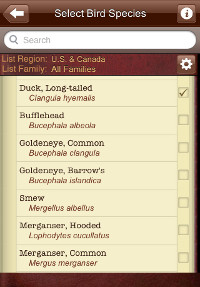
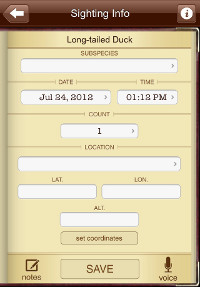
The Good
- Easy to use
- Worldwide coverage
- Can record GPS coordinates
- Can keep track of age, sex, subspecies, and even add voice memos – just about everything
- Species search is very quick and easy
The Bad
- Takes more button pressing (and thus time) to record sightings
- You have to manually enter subspecies and location information
I’ve found Lifebirds Journal to be very easy to use. You can start it up and begin logging sightings immediately without reading any documentation whatsoever (although I’d still recommend going through the help and tutorial available on their website). I like to keep track of “identifiable forms” within species. That is, I keep a separate count for male/female, immature, subspecies, etc. Lifebirds can do that for you.
This app offers a lot of options, but there is a big problem: entering a sighting requires way too much button tapping. To record the most simple sighting – a single bird, without GPS coordinates – requires five taps. And if you’re recording multiple birds, especially of different ages or sex, it can easily require twice as many taps. I find that to be too much time and effort in the field.
My Bird Observations
$2.99
Website
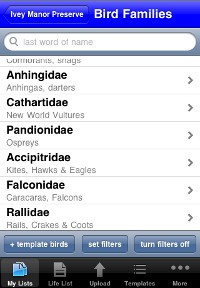
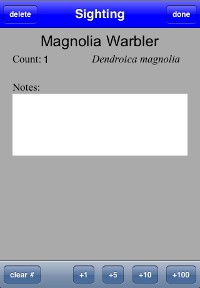
The Good
- Usable worldwide, with preloaded lists for states and countries
- Simple, fairly quick data entry
- Price
- Exports to Birdstack, and uploads to box.net for backup
The Bad
- No easy way to separately count by gender, age, and plumage
- Does not use GPS to record location
- Lack of smart scrolling bar makes it more inconvenient to scroll through a long list of families or species
Of these listing apps, My Bird Observations is the most basic. It will automatically note the start time for each trip, but if you want to record other details (duration, county, etc) you must enter them manually. It does not use GPS. But it is easy, quick, and intuitive to use. The only way to keep track of different types (male/female, etc) is to manually type notes for the species.
Recommendation
First, check out each of these apps’ website. Many of them offer demos and walk-throughs that, while not as good as hands-on experience, will still give you a feel for what the apps are like.
All of these apps will allow you to record the birds you see and create bird lists that can be uploaded to eBird. But ultimately, the one that is right for you depends on your needs. If you need a quick and easy way to count birds, without worrying about recording GPS or various “types”, then My Bird Observations or Lifebirds Journal should work fine. If you think you’ll take advantage of its advanced features, then Birdwatcher’s Diary may be the best choice. And if getting your sightings into eBird is your primary concern, then BirdLog is your app.
Update 8/4/2012: Birdwatcher’s Diary, as of the latest update, can now submit directly to eBird. As soon as I’m able to test it out, I’ll update this page again.
More Bird Apps
- Comparison of Bird Field Guide Apps for iPhone – a similar comparison I’ve done for the North American field guide apps available for the iPhone
- BirdsEye – a bird-finding app utilizing eBird
- birdJam HeadsUp Warblers and HeadsUp Sparrows – warbler and sparrow-specific apps
Disclosure: The apps reviewed here were complementary review copies provided by the developers.
Posted by Grant McCreary on March 9th, 2011.



Thanks for reviewing Birdwatcher’s Diary! Here are a few other features that your readers might also want to know about:
1) Innovative “Enhanced intelliscroll” with its one- then two-letter search lets you find birds much faster than any other app; no need to scroll through 100 birds starting with “S”
2) Easily add sighting notes, including the use of a customizable “phrase list” so that adding typical notes is done in seconds by tapping not typing
3) Flexible sorting options lets you sort and search by first name, last name, taxonomic order, or bird banding code. Sorting by time seen lets you compare your list to someone else who has been keeping a written list to check for errors on your list or theirs
4) Sightings can be easily marked as “heard only”
5) Instantaneously switch between the complete list of birds, and a list of only those birds seen (or even those birds not seen yet – great for big days!)
6) Easily create a Google map of sightings on the iPhone, or on your desktop/laptop computer
7) Can also export as a simple text file to spreadsheets or databases
**And finally, 50% of our proceeds is donated to bird conservation organizations. Last year we were able to give a nice check to our local Audubon chapter. We hope to be able to give out more checks this year!
Check out complete info here: http://www.stevenscreek.com/birdwatchersdiary.htm
Thanks, Debi. Diary was especially hard to summarize – as you’ve mentioned there are a lot of features! I’ll be doing a full review eventually, it definitely needs one. But in my testing I’ve barely even scratched the surface of what it’s capable of. Your last point about the donations for conservation definitely needs to be highlighted – thanks!
If anyone has any specific questions, please ask and I’ll do my best to answer.
Hi Grant, Thanks for reviewing my app My Bird Observations.
Just thought I’d add …. The next edition of MBO will have scroll bars to fast scroll through trip lists and life list. And using regional filters for searching through the bird name database makes those lists a lot smaller.
Rumor has it that the Cornell folks are working on an app with a voice recorder interface that allows you to speak the birds into your smartphone’s speaker and it will collate them for you. It it had GPS it would be the perfect listing app.
I don’t know much more about it, but I’m really looking forward to that one.
Nice review!! I have played with all of these apps myself and I find MBO to be far and above the best to use. I don’t want to have to LEARN a listing app before I go out in the field. The developer has been more than willing to accommodate any suggestions and it’s world wide! The last listing program I used (Bird In The Hand for palm oms) was just north america and hadn’t been updated in probably 7 years. I’m so excited about MBO!!!
@gina: I was just about to email you, but see you’ve already found this. The addition of the fast scroll will be great.
@Nate: wow, I would love to see that. I love the convenience and features of these apps, but the main thing holding me back from full-time use is the time it takes to enter sightings in the field. Really, it doesn’t take that much longer to enter them in these apps than it does to write them down. But the speed and accessibility of my voice recorder has really spoiled me.
@Jessi: Thanks, it’s great to hear from other users.
Don’t expect voice recognition from MBO any time soon. I can hear it now.
user: Black Vulture
app: Blink Venture?
user: Black Vulture
app: Fleck Pitcher?
user: BLACK VULTURE!!
app: Brick Launcher?
user: #@#$$%!!
Thanks for another mention, Grant.
birdcountr is waiting on Apple for an update to go into the store that changes the search to live search and adds a nice year list feature that quickly tells you your year list when you’re in the archive.
The battery issue for the 2 gps enabled apps stinks because the phone gps throws so many false reads and precision requires a constant gps check. Maybe it’ll be resolved in the future, but most apps only have to be ‘close enough’ while apps like these have to be as close to dead on as possible. There are still lots of hardware limitations.
I think they’re all viable apps and each has their own strengths and weaknesses. I made mine just because at the time the only other listing app sucked. Then mine and MBO came out at the same time. I’m obviously biased to mine since I made it and I’ve always got a cutting edge version on my phone ; ) But at least now birder’s have choices to match their needs. Just like anything else, competition and feedback will make each of these apps better in their specific niche. For instance, mine was mostly aimed at birder’s who want to record more detailed info (plumages) in the field.
Don’t look for voice recognition anytime soon from anyone (i would think). How many companies besides the likes of large ones like google have it in an app? I’ve toyed around with the idea of gps tagged voice memos that you could transcribe after the fact, but it seems like people just want instant everything. I find it doesn’t take more than a few seconds to enter a sighting as it is. And with the new search function if you just stay on the search screen you can leap to any bird within a couple characters of typing.
@Nate- where’d you hear that? I work at Cornell Lab of O but haven’t heard that.
iPhone GPS is a notorious energy hog.
@Kevin: Thanks for the details on the GPS issue. I hadn’t realized what a drain it is before starting this comparison. Hopefully they can make it more efficient.
I’m looking forward to the new search!
@Nate- I think you’re referring to the Merlin project. Very different interpretation of the idea of ‘voice recognition.’ That’s some crazy technology. http://informalscience.org/project/show/1897
@Grant- Ya i’ve been thinking about getting an external battery source for any all day birding trips due to the problem. You can shut down the app completely to conserve power during long periods of bird ‘drought’ or breaking for lunch, just remember that when you fire it back up it’ll take 30seconds to 3minutes to kind of come back into precision.
Jessi: I’ve been using Bird in Hand for years on Treo, but will be upgrading soon to either iPhone or Android (probably the former). I did a google on bird listing apps and found this site. If you like MBO and are a BiH user, then it’s a good referral for me. I’m not a compulsive lister nor one who makes copious notes – basically, name of bird, date, place (sometimes, and usually just for lifers).
@Ilene: sounds like MBO will work great for you.
GPS really is only an issue on “big days”, and there are inexpensive solutions to the problem – auxiliary batteries, or car rechargers, both fairly inexpensive. Even then, if you turn the iPhone off except when you’re recording, it’s still not a problem. Kevin’s statement above that it takes 30 seconds to 3 minutes to come back into precision is, I’d say, generally an overstatement; in my experience it’s more like 10-30 seconds at most. And if you haven’t moved that far from the last time you turned it on, and if you’re not in a deeply wooded canyon, it can be more like 1-2 seconds. Example: I’m sitting in my office and just opened up Birdwatcher’s Diary (my app). I hadn’t been using the app for days. It took exactly one second for the location to turn green (which indicates precision better than the target setting, which is user-settable, but I have it set to 100 meters).
I’ve tried both Bird Countr and My Bird Observations. Both I’ve been less than pleased with in terms of listing apps, specifically for eBird use. The major issue I have is the time it takes to enter birds. I find I spend more time looking at the iPod than at birds. Not exactly what I am looking for when I’m birding.
I’ve thought about Birdwatcher’s Diary, but I’m cheap. $9.99 is too much for an app I am not certain will work. Especially since I am not concerned with the app as a listing program, just creating lists for eBird. I’ve looked thorough the manual and it looks promising I just can’t justify that money for an app that may end up just sitting on my iPod like the others.
Bird Countr- haven’t used it much because it constantly shuts down or stalls on me! I haven’t really been able to successfully do a test list as the app shuts down/stalls at some point in the process. Ie. as in retesting just now and I can’t get past the “Start Birding” button. When I did actually get a test list just after I purchased the app, the archive showed like 20 lists for my test instead of just the one. Not really useful. To be fair though I guess, I have only picked it up a couple times and should try the update and see if that fixed the bugs.
One other issue is that in Bird Countr you have to set each species as a “Running Count Mode Species”. Not a huge issue but it would have been easier if Bird Counter added a way to set all species as running count for those who are not concerned with a GPS location for each sighting entered. Or, those who don’t use/have GPS.
MBO- Found this one first and tried it first because it was cheapest. Worked well in the field the first time I used it but it was a WAY slow process and cumbersome. The process has improved greatly since the addition of the quick search. Personally I’d like to see an add species feature by Banding code (ie. enter for EABL for Eastern Bluebird then access then hit the plus button to increase numbers the next time you encounter the species.) I actually sent the app designer thoughts but never hear boo back, nor have seen many of the suggestions implemented. One feature I like is that it is not GPS enabled allowing the “none” location. This enables you to enter sightings on the fly, say if you are driving down the road and see a bird fly over. You can create a list and then enter pertinent location and other eBird info later.
Since my major purpose for looking for a listing app was to use for eBird I have fond a number of shortcomings of at least MBO (maybe Bird Countr too but cant get it to run). These have all previously been submitted to the app designer.
1. No way to enter a write in species in a filtered mode. Ie. Say your list is filtered to your state in effort to reduce the cumbersomeness of the data entry process. You’re birding and you see a species that it not in the filter, there is no way to enter that bird on the list. There is no ability for entering a “write in species”.
2. No way to enter generic species ( I.e warbler sp., sparrow sp. or Short-billed/Long-billed Dowitcher). This is a huge issue in terms of eBird entry given that it is important that even generics be listed, not just species that are on a check list. The fact that I saw 10 species of warbler that I could identify is important. But it is also important to note that there were 10 “warbler sp” that may have been flying over that I could not identify. Noting their presence is important scientifically.
3. There is no way to enter sub-specific information. Ie. You can only enter Yellow-rumped Warbler, not Myrtle or Audubon’s. Palm Warbler not Eastern or Western Palm. This like the generic species is important information for entry to eBird.
4 Specific to eBird is the fact that only a “Traveling Count” can be utilized in MBO. I assume that if you entered a zero for “miles traveled” the list might be considered a “Stationary Count” in eBird. I have yet to take the time to enter a list so I am not 100% sure on that point. Though I would think that you make an app truly robust for use with a program such as eBird (and to cut down on the extra entry/adjustments on the excel spreadsheet you have to create to upload into eBird, given that the actual whole point of these apps is to cut out a few steps in the note taking and entry process) you would need to have the ability to select the same types of counts that eBird has.
5 Again specific to eBird. Time entry has to be in .25, .5, .75 and 1 hour increments. eBird data entry allows for any specific amount of time say, 1 hour 22 minutes. Further, upload to eBird from excel files, the time has to be in minutes, so my 1 hr. 22 min would have to be 92 minutes on the spreadsheet. This is not a hugely major issue since you could always round up or down a slight bit. Sure being forced to round your time skews data a bit but in the grand scheme of things with the volume of data entered it’s a minor issue. Or you have to add the step of correction in to the excel portion of the upload, again there by negating the time saving aspect of a bird listing app.
The other aspect I wonder about is list correlation with locations I already have in eBird. My local patch already has a number of lists in eBird. If I use a listing app and add the GPS coordinates (obtained from eBird and location named exactly the same) to the excel spreadsheet for upload, how will eBird perceive this list. Will it be considered the same location or a new location? I guess a question best answered by eBird. None the less some thing to consider.
Either way, in my experience with these two apps, neither is a replacement of just carrying a notebook and entering the sighting later.
Wow Jason, You sure want a lot.
First of all, I guess I didn’t receive your email because usually I respond so quickly people are stunned.
Not sure what you mean by ‘write in species’, but you can turn the filters off/on with one button.
Sub-species and generics are just too difficult for me to do since my database is a combination of ebird and ioc. I’m working on taxonomy updates right now and if it was more than species I probably would have shot myself by now.
If you use the identical location name eBird will match it without including lat/lon in the file.
MBO extrapolates count type except random. Yes, 0 miles equals stationary.
Time input is clumsy and I should do something about that.
Banding codes may be possible if I had a digital list I could match to the taxonomy. Do you know where I could find that?
In my defense I’ve been working on this app practically full-time for year and there’s always more to do and I’ve yet to recoup even the cost of the MAC I had to buy to do apple development.
Gina
@gina- ‘Wow Jason, You sure want a lot.’ Hahaha!
Ya, I did my taxes the other day and what I spent making my app is like 5x what I spent to be able to make it. And just looking at earnings I made about $0.87 per hour if you don’t include what I spent.
So, with that in mind, I suggest people make their own apps if they want specific features tailored to themselves. Single developers of niche apps don’t really make money. Mine is more a labor of love and, first and foremost, a tool for my own use that fills my specific needs. I do, however, try to add things when people ask for them if it’s reasonable.
@Jason- try reinstalling. I’ve had no problems on a 3Gs or 4. Maybe, also try- restarting your phone (after all, you restart your computer) and closing down apps when not in use (fully by double-clicking the home screen, holding down the app until an x appears, and tapping– apple did a terrible job letting anyone know this is how you do it).
Also, seriously it takes like 15 seconds for me to enter a sighting, and that’s with drilling down to the bird by way of family. Maybe 20 if I count pulling my phone out of my pocket and opening. How is that too time consuming? Birding is a luxury. If you have time to spend on it, you’re not exactly pressed for time in a larger sense. Everyone wants everything faster than instant. Anyone complaining about 20 seconds wouldn’t have been able to survive 100 years ago. So maybe it takes about 10 seconds to pull out a notebook and jot down the notes and put it back, plus another 10 seconds later on to copy that data somewhere else. It’s a push. But with an app you get the addition of gps data and that fact that when you want to see your data, it’s in your pocket. And when you go home, you’re done for the day besides a submit to eBird if you want to. You don’t have to do birding paperwork.
I, personally, think eBird should come out with a html5 data form for mobile. Then you could make a list live and it could even hook into the devices gps. But I don’t work on eBird, so it’s not my place to do anything but pontificate. I still like my own app for my own purposes ; )
@ Gina, thanks for the response. I sent the initial message through the suggestions submission page on your web site.
I don’t think I want “a lot.” Just an application that interfaces with a program, the way the program works. Otherwise that means more work in the spreadsheet end that adds steps. Like I said previously this would be counter to the app being intended to take some of the steps out of the process. Or possibly I am looking at this the wrong way and these are simply personal listing programs first, with the eBird interface as a feature to try and sell more product. Either way, as for the data collection for eBird, I would expect the program that interfaces the most seamlessly to be the one that garners the lion’s share of eBird user market.
It could be said, “what do you want from an application that only costs $2.99.” And this statement should be true I guess. Possibly that’s the issue, that my expectations as a birder are just higher/different than the user that you are targeting.
If doing sub-specific listing is too difficult as a programmer, I can understand (I have a friend who’s been in the same situation for the bird database he’s created. Though the generic species “warbler sp.” is a non-issue for him. It’s the Rufous/Allens Hummingbird that the issue).
As for write in species I mean just that. If I am birding in Florida and I have that filter set (there by reducing the number of birds I have to scroll through), there is no way to log if I see a species that is not listed in the FL filter. Say I see a Lucy’s Warbler, I don’t know of a way to enter that sighting on the list. The only thing I can figure is to turn off the filter, log the sighting and then re-instate the filter. Of course this a cumbersome process but it is a work around non the less. Granted this is an extreme example and having a state filter should be, in most cases, enough. Finding a rarity is not a daily event so not an issue that would arise often but a feature that I, personally, think would make for a more robust app. The more features you can offer your use the better.
Thanks for the clarification on eBird matching location names. I think that it an important aspect of the eBird use that MBO app users should know.
If MBO extrapolates 0 miles as stationary count, I am guessing that the app gives just two out-puts then: Traveling and Stationary? I am guessing the Casual Observation is not in the mix? Not that this is a major issue for me.
As for the BBL Code table. Below are to links two the Patuxent website. The first gives you the opportunity to access this info in a couple ways (sorted by species #, sorted by alpha by banding code or sorted alpha by common name). The second is specifically the species list (alpha by common name) with the banding code. Maybe this will help?
http://www.pwrc.usgs.gov/bbl/manual/bandsize.htm http://www.pwrc.usgs.gov/bbl/manual/sname.htm
Here’s another link that has a PDF with codes for 2055 species. http://www.birdpop.org/AlphaCodes.htm
I am assuming you need the table in another format, which I have been unable to locate on the web. If you contact the Patuxent Banding Lab they may be willing to send you a copy.
There is no reason to say in your defense. You have obviously put a lot of work into this app. I am not intending to attack you; just listing what I think would make the program better and more user friendly. It’s up to you as the designer/programmer to decide what you can and want to do with your program.
@ Kevin, “I suggest people make their own apps if they want specific features tailored to themselves.”
I think that if you make a product that is for purchase you need to be able to take criticism and understand that your user is paying their own hard earned money for your product. Like I said before it is up to you as a programmer to take the suggestion into consideration to make your product better. The only link missing is that Apple does not allow for return of funds.
Like you say this is a labor of love. Anyone who gets into it making bird-listing apps and thinks they will make a boatload of money is foolish. So why whine about it. I’m no CPA, but I’d think the money spent (or losses) could be tax-deductible?
Thanks for the notes on the reset, I’ll try that. I also need to install the new update.
“Birding is a luxury. If you have time to spend on it, you’re not exactly pressed for time in a larger sense.”
In sort of somewhat agree (as is any “hobby) but I also try to get out to my local patch when I can before work where I have 30 min to an hour at best. If I am looking at the screen too much time, well that’s just not what I want. I can write and somewhat look around at the same time. Not so in fiddling with the screen.
By my count (just timed it) from starting the app, when the Bird Countr opening page pops up, (with a fake list already going) it took me at least 30-45 seconds to enter Fulvous Whistling-duck. This is the first group and first species I came to, so you could add at least a second or two if I was trying to add a sparrow. Plus you have to add the time to fiddle with the data that the program does not collect when doing the upload. Now, one thing I really like about your app is the “Quick Entry” that utilizes the band codes and count on one page. That cuts the time in about half and I can enter the same banding code & total and the program will add the numbers for a running count.
How does Bird Countr deal with upload to eBird in terms of location? Does eBird recognize the location if it is identically names as Gina said MBO does?
“Everyone wants everything faster than instant.”
Well yes, for an app such as this that you are using in the real world, I’d think that most users would expect it to be fast. In my opinion that’s kind of what you are selling. Otherwise I’m an app-watcher not a birdwatcher.
“But with an app you get the addition of gps data and that fact that when you want to see your data, it’s in your pocket.”
What was that you were just saying condemning people for wanting everything in an instant? Aside from the fact that you over looked what I initially said. Personally, I am not concerned with having my bird records at my fingertips, “instantaneously” accessible. Though I can see the advantages of this being the case. My main purpose is eBird list creation.
@Steve: the GPS-battery issue is relevant for more than just big days. It was an issue for me on a couple of field trips. They were long (6+ hours) trips to barrier islands where I didn’t have access to a car charger. Granted, these trips don’t happen all that often (unfortunately). An auxiliary battery would work, of course. If I find myself in this position more often I may just have to break down and get one.
@Jason: give birdcountr another shot, it sounds like it’s the closest match based on the features you want. As for the crashing, make sure you have the latest version of iOS and birdcountr. If you still have an issue, reinstall the app. I think you’ll lose any lists and any configuration you’ve done (anything he can do about that Kevin?). But that should help – I haven’t had any issues with the app crashing after I did that.
birdcountr doesn’t have all subspecies available as choices, but it does have many of the most common ones, like YRWA. Plus, as far as I can tell, it’s the only one that has a choice for generic species (i.e. “crow species”). Again, it doesn’t have that entry for every group, but it has the common ones (“dowitcher sp”, “warbler sp”, etc).
The upcoming search feature sounds like it could significantly reduce the time it takes to make entries.
It does not, however, have a “none” location. Kevin, how have you been entering incidental sightings?
@Grant- Didn’t you update the app yet? It went in the store yesterday. Incidental sightings I’ll usually just do at the end of the day as a ‘historic sighting’ and find it on the map (which I should move from the menu page to somewhere more obvious). Unless it’s a really good bird, then I’ll go thru the trouble of making a single bird list then and there for the exact geodata. I’ve been thinking about the problem of incidental sightings but haven’t really come up with a good solution. Which brings me into my next point:
@Jason (first I think your misreading my subtext as defensive when really I’m just being playful)- what you seem to want is an eBird centric app, but in reality I made my app with the driving force of being a way to take personal geodata. I didn’t even add eBird until a couple versions ago, more to fulfill others’ requests. But the main purpose is so, say at my local park I get Mourning Warblers every spring. I want to be able to visualize on the map exactly where these sightings were over the course of the years. With my app I can search in the archive for Mourning Warbler and look at all the sightings that occurred in the park and where I was in the park. Of course it’s the spot I was standing and not the spot the bird was, but it’s way closer than just saying ‘local park.’ It’s basically that the app has a different protocol and purpose for data than eBird’s. It’s surprising that ebird doesn’t even have a mobile version of it’s data entry page. Then you could just leave it up in safari and take your notes live in that and you wouldn’t need an app if that’s your only use for the data. But it’s pretty dismal now as a data entry system from mobile safari. I know they’re updating the data entry but I’m not sure if mobile ready is in the plans or not. I should snoop!!
Also, it took me 10 seconds from pocket to saved entry for Fulvous Whistling-Duck. And I, too, am a half-hour here, half-hour there birder but have not found it to be intrusive. Maybe it’s just because I’m quicker with the app. Plus 9 out of 10 birds are entered by band code without any plumage notes. But now that I have the search I’ve been leaving it on that screen and just typing a few letters to get the bird. So that should force me to do more plumage notes.
@Jason, if you sent me an email through the user comments page the text would be recorded there. I don’t see anything from you. I don’t know what happened but whatever you wrote was never recorded. I’m sorry if you thought I just ignored your input.
I think you’ll find many of us birders (we birders?) are more casual with our sightings than you are, like Ilene above. I have some very happy users. I also have had some feedback that it’s the worst app ever written. Ah, well.
Personally I wanted an easier way to create eBird import files. I think if you tried to manually create one you’d see how amazingly unuser-friendly they are. However, when I created the app eBird was not global and I really wanted it to work everywhere. Then I found Birdstack, and the IOC taxonomy scientific names became the driver for the DB instead of eBird.
I was thinking in terms of transient data which would be deleted after upload, but user requests have taken it in a different.
As for speed, well, I don’t think any app will ever be great for The World Series of Birding where people are literally running through NJ.
@Jason: Birdwatcher’s Diary is highly optimized for speed. Our unique (to all iPhone apps as far as I know, not just bird counting apps) “Enhanced Intelliscroll” which switches from 1- to 2-letter “keys” (down the right) lets you find the vast majority of birds in two quick taps without scrolling, and the rest with minor scrolling. I just opened up the app as I was reading your comments. The list appears in less than a second. Tap “D”, then “DU”, and Fulvous Whistling-duck is on the screen, so tap it. Total time less than 3 seconds. Incidentally, if you found that confusing, Birdwatcher’s Diary offers you the option of alphabetizing with or without the “-“, which means you could find Whistling-duck under the “W’s” or under the “D’s”, whichever you find most comfortable (or you could find “Fulvous Whistling-duck” under “F” if you alphabetize by first name or by bird-banding code, two other options).
As far as pricing, I can’t tell you or anyone else what something is “worth” to you. But I will point out that $10 is probably less than you spend on gas in a day of major birding, and orders of magnitude less than the average birder spends on binoculars or photo equipment. And, by the way, you can get refunds from Apple if you’re not satisfied with a product.
Birdwatcher’s Diary doesn’t include generics or sub-species in our “standard” lists, but we have dozens of lists which you can download and merge into existing lists ( http://www.stevenscreek.com/iPhone/bwdmasterlists.htm ). In fact, we have four different eBird lists of which you can install any one or all four – “spuhs,” “slashes,” “forms,” and “hybrids.” And of course you can add your own easily into the standard lists.
As far as eBird goes, Birdwatcher’s Diary supports all four modes of upload – Casual, Stationary, Traveling, and Area. For Traveling, if you’ve been using GPS recording, it even crudely calculates your distance and duration (or you can enter the values manually to any precision, although the calculations are undoubtedly “good enough” for eBird). Incidentally, since eBird will NOT let you upload the specific GPS coordinates and time of each sighting (it only handles one set of coordinates and one starting time per “checklist”), Birdwatcher’s Diary sticks that information into the comment, so that it is still available for you to view on eBird (even though eBird itself doesn’t do anything with it). Birdwatcher’s Diary also uploads to eBird (and to Google Maps) from simple text files, which makes things quite easy to deal with.
Viewing our movie or reading the manual (even just looking at the myriad of screen shots) might prove useful to you or anyone looking for more information; links to both are here: http://www.stevenscreek.com/birdwatchersdiary.htm
@Kevin: thanks for the heads-up. I even updated all my apps yesterday, but must have done so before your update became available. I’ll have to put the search feature to a real test soon.
@jason, One of the files from the Bird Pop. looks perfect. I’ll definitely add a code search in the future.
I’m not a fanatic daily birder but I do like to record when migrating birds pass through and other seasonal events. I tried the free version of bird counter but found it buggy and frustrating.
What I ended up using for now might be worth looking at if you want something simple. It is called That Just Happened! (and was a free download)
So for an example: bluebirds just returned to my yard yesterday here in the Upper Peninsula of Michigan so I entered ~Bluebird~ as an event under a ~Birds~ category I created . I plan on using the notes feature for additional information such as when they returned, when their chicks hatched, and when the second brood hatched.
I also plan to use it to track information about the garden (planting, bloom, and harvest events)
I use a iPod Touch so I don’t have the GPS. I did note that it has a map feature which does not (obviously) work for me.
I am new to apps and sincerely appreciate the information available here on this site. Finding good, authoritative information these days is hit and miss. I come here first for birding information. Thank you.
@Dave: thanks, glad this has been useful for you. I’ll have to take a look at the app you mentioned.
fyi – just released My Bird Observations for Android.
Just read this review, and I’m a birding (and overall) app beginner. So, I’m looking for advice.
I typically keep a hand-written list and then transfer data. When I first started, I transferred to a Nat. Geo. journal. Then, I discovered eBird, which I love. If there’s a way I can trade out my pen and pad for my iphone, that would be ideal. Writing can get messy for me – as my note-taking is poor when I’d rather watch birds. I forget to add details, and then have to remember later on. Not good. I even lost a list to my dog once…before I could add it in to eBird.
So, I just got My Bird Observations and the Sibley app. I see that both allow list making, but do either sync with eBird? I want to keep my list(s) in one place – ideally eBird – instead of starting over somewhere again.
I’m looking for a listing app that will help to keep it all simple. Less writing, transferring, etc. = more birding and better records. And, I’m hoping by switching from paper to app, I won’t ever have to say, “My dog ate my trip list,” again!
Your advice for a beginning “app-er” is greatly appreciated!
@Claire: the list function in the Sibley app (and other primarily field guide apps like iBird) is mostly a rudimentary life list. They are not very useful for making lists for field trips and they do NOT sync with ebird.
My Bird Observations (as well as the other 2 apps on this page) DOES sync with ebird. When you create a list, there will be a screen to enter eBird-related info, such as start and end time, and distance traveled. When done with the list, you can “upload” the list to your email address. The email will include a file that you can use to import into eBird.
This two-step process – export from the app and import into eBird – is necessary right now. No app (yet!) can interface directly with eBird. Though I believe one is coming in the future.
@Claire: Hi, I wrote MBO. You can also import your eBird life list into the app. Feel free to contact me with questions – eaglevl@verizon.net
Birdwatcher’s Diary has some excellent features.
However, it doesn’t do what it claims. On the website they say you can “upload the recorded information to desktop software or online databases like eBird.” You can’t upload to eBird directly.
You have to transfer your sets of sightings somehow to your computer, then somehow put your digital files into a format suitable for uploading to eBird. And the BWD files are not CSV, as far as I can see, so fixing up the files is a lot of work.
And they don’t fully explain, in a clear manner, exactly how to do this.
Also, some aspects of the user interface aren’t intuitive. For example, there is a button to “Clear All Sightings” but what does this actually mean? What would you think it meant? … that you wipe all the files from storage or that you just clear your sightings for the day so you can start a new list?
Unless you are simply looking for a very good listing app, I would recommend you save your money and hopefully eBird will come out with an app that really works in conjunction with them.
Upload from a computer is the only method currently available for uploading to ebird. I’ve been told that ebird is working on an api for dire
ct connection.
Hey, you got a great site man. Nice job. Are you interested in Corporate promotional items and custom discount trophies and awards?
Responding to Dianne C:
As Gina notes, eBird does not currently permit direct upload. HOWEVER, our software outputs a file in the PRECISE format required by eBird, producing a file on your desktop which can be immediately uploaded to eBird, no editing required. And there is a section in the manual entitled “Inputting data into eBird” which explains step-by-step how to do this. If you have GPS, the software even estimates the duration in time and distance of your outing (you can change them if the estimate seems off), something that eBird requires for the most common format (Travelling).
“Clear all sightings” is used to clear the currently ticked sightings on the main screen of the software. Previously archived sightings are seen in a list on the Archive screen, and can only be deleted (one-by-one, not en masse) with several more steps; we certainly don’t want to be done easily.
I saw a Bird Watcher’s Diary demo by one of the developers at a bird festival last month (Sept, 2011). I grilled the guy on all aspects of the app and had him demonstrate it to me in detail. I came in skeptical and not expecting much, but got more and more excited about it as it went along. By the end, I was amazed to think this is ONLY $10, given the extensive thought and detail in the program. I downloaded it to my ipad and have been exploring it, but am planning on using it actively on an iphone that I’m getting soon (4s). I, too, have been using a voice recorder (most recently, one on my Blackberry) or an old fashioned notebook as my way to record birds, but this app eliminates all the transcribing work I’ve had to do. Because you can export to ebird, it seems all you need is an easy way to get records in quickly and accurately and this does seem to do that. It appeared that the only ‘work’ involved was setting up your ‘lists’ and organizing the filters.
While I haven’t had much time with the app and can’t say how it is ‘in the field’ per se, I am writing because, having witnessed someone who really knew how to use the app, I can see how quick, efficient and powerful the app is. In other words, IF you can get ‘fluent’ with it, it looks to be a stunningly useful tool. I particularly liked how you could customize descriptive words for a sighting and access them by clicking (I believe all age/sex/plumage, etc. issues could be accommodated as you need through this). To have gps location for rare birds that you could send immediately as a google map to listservers/friends is also great (not necessarily unique to this app).
I’ll write once I have some time with the app, but I would encourage people to get to know the app and its features before panning it. It does appear to have a ‘learning curve’, but that doesn’t mean it is bad!
A follow-up on my last comment… I have now been using the app with my iphone 4s in the field for the last month. I have submitted about 20 checklists via Birdwatcher’s Diary and find it an extremely powerful tool (revolutionary for my listing/interface with ebird). I have a fellow local birder who uses MyBird Observations and have had a chance to compare a bit. Overall, I find BWD much more powerful and quicker/more intuitive to record with. I find it basically effortless to use in the field and love it, overall. In particular the GPS is a very nice feature, but yes, it does drain the battery (not an uncommon problem with iphone 4s in general, for that matter…needs careful management…). It helps, however if you reserve the reporting to fewer locations and keep the GPS off, until you feel you really need the location specified (this can be controlled easily with ‘location services’ in settings). If you ultimately are merging with a hotspot via ebird, it won’t matter really that each sighting is GPS located anyway. And to be honest, you rarely really need to know the location of each sighting (even though it is REALLY cool to see the Google map of your sightings afterward). It is also great to be able to directly send a report to your local listserve from the app, which not only allows for your prose commentary (followed by the list) but also a link to the Google map (for those who may want to know the exact details). Very cool.
However, I do have one reservation. The ‘archiving’ record of each list on the app that you create is made very clumsy by the fact that you can only archive one day at a time (as far as I can tell). This makes the archive rather restrictive, because I might NOT want to merge lists for one day into a whole list for the day. It also is quite unintuitive to use and ultimately not very clear about how to use it properly. At this point, since I am using the exported data to organize my lists (via ebird and my own email record), it does not really matter that the app archive is that good, but it is an example of something that needs development.
For that matter, the overall exporting/archiving/saving interface is remarkably unintuitive and rather complicated, although ultimately quite powerful if you learn it. I’m sure it could be better.
I have no qualms about the cost (and find it ironic that people quibble over small dollar amounts after spending hundreds of dollars on an iphone!). I do feel apps like this might seriously revolutionize bird recording and allow for much better and more consistent data collection in public databases.
Thanks for the report, John!
I really need to use BWD more to get a better feel. But that would require being able to go out and bird, and unfortunately I’m not able to do that much lately.
[Comment removed]
Prof, thanks for the valuable insight.
I’m pretty laid back as far as comments are concerned, but I’ve got no problem removing unhelpful and, especially, insulting ones.
Good review, great discussion!
New app specifically for eBird: BirdLog.
http://birdseyebirding.com/products-pricing/birdlog
How does this one compare?
@Tim: I’ve had a chance to use BirdLog for a few weeks, and it has become my go-to listing app. I really need to update this comparison and do a proper review of it. But in the meantime, here are a couple of points:
The Good:
– submitting directly to ebird is fantastic, and a big timesaver
– it is very fast to enter data in the field, unless you want to note male/female, etc (see below)
– you can create offline checklists if you don’t have any cell coverage
The Bad:
– not as fully featured as some other apps. Specifically, it uses gps to note your location, but you cannot tag the location of specific birds.
– besides the count, you can only enter text notes for sightings. There isn’t any way to easily keep track of male/female, age, heard-only, etc. You can enter that as a note, but it takes longer and is more cumbersome than it could be
I thought that last point would be a deal-breaker for me, but it hasn’t been all that bad.
I’ve encountered a few annoyances, and there are some improvements that I hope can be made, but I’ve really been very pleased overall.
Unfortunately, the eBird people are not allowing app developers, other than Birds in the Hand LLC, to use the API for direct input from the smartphone into the eBird database. The do allow others to use the API needed to integrate eBird data into other apps to find birds, but are reserving the ability to input data exclusively to one app. We have written, twice, to eBird asking that they allow other developers to have this capability. Ironically, Stevens Creek Software, developers of Birdwatcher’s Diary, supplied the eBird folks with free copies of Birdwatcher’s Diary in the interest of cooperation. We think that refusal to share this API runs contrary to the spirit of scientific investigation and cooperation. Don’t they want users of Birdwatcher’s Diary and other listing apps to be able to directly input their sightings data into the eBird database? Are they not trying to get as many people as possible to share their sightings on eBird? Restricting the capability to do this to one particular app defeats that presumed objective. It is also an unfair competitive advantage. Why is an educational institution, the Cornell Lab of Ornithology, intervening in the world of app competition? Perhaps they need to hear from users of the other apps asking that they allow everyone using a smartphone listing app to do what BirdLog alone can now claim.
Interesting. I thought I was the only one eBird ignored. Although, I have to admit that I do not use their API because they change a fee.
I knew that BirdsEye had exclusive use of the ebird mobile submission, but I don’t pretend to understand the rationale behind that. I would think that they would want to make it as easy as possible for any user to submit records. That said, they have a right to do as they please (even if it may not make sense).
But I would also encourage users of other apps who want mobile submission capabilities to contact Cornell and let them know.
cornell may be worried That their database will get screwed up accidently or malicously
Cornell knows it gets correctly formulated, good data from users of Birdwatcher’s Diary. We have accommodated their various ways of reporting and made it easier to report, and to report according to their protocols. We have provided them with copies of the app and as “users” they get updates if they want. I can understand that they wouldn’t want developers that they do not know and whose software they are not familiar with to have the API, but that is not the case with BWD.
I’ve updated this page to include two more apps – BirdsEye BirdLog and Lifebirds Journal. I also removed Birdcountr, as it no longer seems to be available.
Stevens Creek Software is soon to release the newest version of Birdwatcher’s Diary with many new features, the most notable is the ability to upload sightings to eBird directly from your iPhone. The app lets you preview your list before submission in case there are any changes needed. The app calculates your distance and time based on the GPS and time captures (editable of course), allows you to choose counting birds or just mark as present (all birds or just some), and accommodates all of eBirds format protocols. You can preview the Export to eBird screen on the BWD Facebook page: http://www.facebook.com/BirdwatchersDiary While waiting for the app to appear in the iTunes store, we will be revealing one of the many more new features each day on Facebook. And with this new 5.0 version, there is now an iPad native version of the app.
Wow! Big news
I greatly appreciate the time and effort that Grant has taken to do the comparative review of listing apps. I would like to try to clarify and explain the amount of effort to enter a simple sighting in Lifebirds Journal since this was considered to be a big problem.
The five taps to enter a simple sighting can be done in 6 seconds or less, so the process is not as time consuming as perhaps implied. Here is a breakdown:
1. Tap on species name to open an edit/view existing or create new sighting screen.
2. Tap on the prominent “New Sighting” button to open the screen to enter detailed information. The only detail that must be added is location. Time, date, and count are prefilled.
3. Tap the location button to open the location selection screen. The last used location is at the top of the screen with a use button next to it.
4. Tap the Use button returning you to the main sightings screen.
5. Tap the SAVE button to save the sighting.
Again, this takes about a second per tap, but also gives you the opportunity to do more on each screen than just enter simple information.
Taps 3 and 4 could have been eliminated by prefilling location which would have reduced the total taps to three. However after years of experience in designing and implementing electronic medical record systems, I found that users often just hit save without noticing that the prefilled information needs to be changed. So after much debate, we decided to go with reducing errors on selecting location rather than cutting out a second or so of data entry time.
Lifebirds Journal was specifically designed to let you enter as detailed and as complete a set of information as desired and then easily retrieve and export lists by any possible combination of dates, location, and family. Please note that the listing function was not specifically noted in the review but could be considered as one of the strengths of the app. I encourage those who are interested to look at the website and tutorial for a fuller review of what the app can do and how to use it efficiently.
Jim is right – we’re not talking a lot of time, strictly speaking, to enter a sighting in Lifebirds Journal. But, personally, I’m very sensitive to the amount of time it takes to enter sightings, since that is time not spent looking around for birds. As I mentioned above, I previously used a voice recorder that allowed me to record sightings without ever looking away. I think that spoiled me 🙂
So it is quite possible that other users may not be bothered by the time/steps required. However, I still have to qualify this as a negative in relation to some other apps. For instance, you can record a sighting in Birdlog with just a single tap.
[…] that there are a few good choices that have been reviewed by Grant McCreary on his blog “The Birder’s Library.” I decided to try the BirdLog Worldwide, an iPhone app which is on sale now for […]
I am 100% in agreement with Grant: the fewer steps to enter a bird, the better. Six seconds may not seem like a lot of time, but on a CBC for example, if I spent six seconds entering each sighting, I’d see far fewer birds. The real problem is the shift in focus, both optical and mental. You take both your eye and your mind off the birds when you stop to enter data, and this repreated interruption in concentration has (for me at least) a significant effect on my birding.
I’ve been trying to use BirdLog, and even that is too much for me. In large part this is because BirdLog won’t let me enter a custom checklist, and I live on the California coast, so I have to swipe through screensful of seabirds to find quail, etc.
One other thing to be aware of, is the apps designed for the iPhone may not work properly on the iPod, even if they claim to. Any app that uses the GPS will probably give you trouble on an iPod (which does not have a GPS). I’m using BirdLog on the iPod and it works, but there are several extra steps involved that make it more cumbersome.
Tim, I don’t know if you’ve tried Birdwatcher’s Diary, but let me review some of the features which make it IDEAL for a CBC (or any recording, but let me focus on CBC):
1) You can create custom checklists
2) There is minimal scrolling to find any species. We use a unique “Intelliscroll” technique in which you tap on “Q” to get to Quail (just one tap) and then just tap on Quail to record. A 1-letter key itself is not unique. But if you see a Gull, one tap on “G” to get to the “g’s,” then the system switches over to a 2-letter key showing all 2-letter combinations not only of “G”, but also of “F” and “H”, in case you missed the “G” (a common problem) so you just tap on “GU” to get to the gulls. With an iPhone pre-iPhone 5, 9 species are now shown (more on the iPhone 5 with its larger screen), so you might need AT MOST to scroll down one screen (say, for Western Gull). Of course if your custom list had fewer than 9 gull species, even that wouldn’t be true.
3) For most sightings (not including gulls and blackbirds), a few quick taps on the species records 1, 2, 3, 4 etc. individuals. For larger numbers, there is a calculator which you tap to view and then enter the number. Importantly, the calculator lets you ADD as well as just enter numbers. So for your first sighting of some species of gull, perhaps you enter 150. Now when you get to the next pond, and there are 135 more, you can use the ADD (+) button to add the new count to the existing count.
4) Most importantly of all for CBCs is the fact that you can quickly (with one tap of a button) switch between a list of all possible species (all of your custom list) or just the species ALREADY SEEN. This is key for speed because after an hour or two, MOST of what you see is something you’ve already seen. So instead of a list of several hundred species, the list might only be 30 or 50 long. Now your odds of getting to the right bird with just one tap rather than two or two plus scrolling are extremely high; indeed, for at least nine species, there is no tapping on the key or scrolling at all, just tap the species name one or more times to increment the count. And if you see a new species, just tap the “All species” button and then begin your search for the new species.
5) Finally, on the concentration question, you are certainly right to keep your eyes on the birds! Typically, CBCs involve more than one person, so that someone else should still be looking while you are recording. But if you’re alone, there’s no problem waiting a few seconds or minutes (or hours for that matter) until you’re at a lull to record your sightings. The price you pay, of course, is that you may forget something, either a species, or just a count. On the other hand, if you record too often, no matter how few seconds it takes, you may also miss a species or a count, so you have to judge at any given time the appropriate tradeoff. For SURE recording with BIrdwatcher’s Diary is WAY faster than recording on paper, which is what I see most people doing.
6) Last but not least, the software easily switches from sorting by Last (or First, as you prefer) name order and Taxonomic order. This makes it INCREDIBLY easy to transfer your sightings from the software to the count sheet you need to turn in. At some recent count dinners, I watched people take 10-15 minutes what I accomplished in under a minute.
On the GPS question, there is no problem using a device without GPS, Birdwatcher’s Diary only records precise GPS coordinates of sightings IF your device has GPS AND if you tell it to (by setting the appropriate setting). Otherwise it just records the location as the location you set up for the park or pond or other place you are birding at the time.
There’s a new smartphone app, called HEARD, that has caught the attention of birdwatchers. It lets you capture audio AFTER you’ve heard it. It works by constantly caching nearby audio in an ephemeral buffer until you press a button to save the buffered clip to a file that can be replayed anytime and shared online. You can also easily append live audio to the past audio (by just holding down the record button). Check it out.
stephanieWith October’s additions of the Blue-headed Vireo and Hermit Thrush, then the Golden-crowned Kinglet and Swamp Sparrow today, we are up to 81 for our Birding Big Year! Thank you to Nick Pulcinella and Nick Crocetto for lindeag today’s Bird Walk.
[…] Bird Listing Apps for the iPhone […]
Hello everyone, it’s my first go to see at this web site, and article is truly fruitful
for me, keep up posting these articles.